The update installed overnight. By nine the next morning three people cannot print, the printer shows a ready light and nobody changed anything. That pattern is easy to recognise, and it deserves a calm order of checks, because an update can touch several things that printing depends on and each one is tested a different way.
Windows updates can replace drivers, change security settings and restart services. That does not mean the update is to blame every time, since a printer can also fail on the same morning by coincidence. The checks below separate the causes so you can fix the ones that are yours and hand over the one that is not.
Start by finding out how far the problem reaches
Before you touch a setting, ask three or four people the same question and write down the answers.
- Only one PC cannot print. The cause is likely to be that PC's queue, driver or port. The printer and the network are probably fine.
- Every PC that took the update cannot print, and the others can. Something the update changed is involved, usually on the PC side.
- Everyone cannot print, including PCs that did not update. Look at the printer, the print server or the network instead. The update may be a coincidence.
- One program only fails. Try the same document from a different program. If that works, the fault is in the program or its print settings, not in the printer.
That one list often saves an hour, because it tells you where to look before you open a single menu.
Check the printer before the PC
Walk to the machine and read the panel. A cover warning, a paper tray message or a service code can hold jobs even though the lights are on. Clear whatever it shows first.
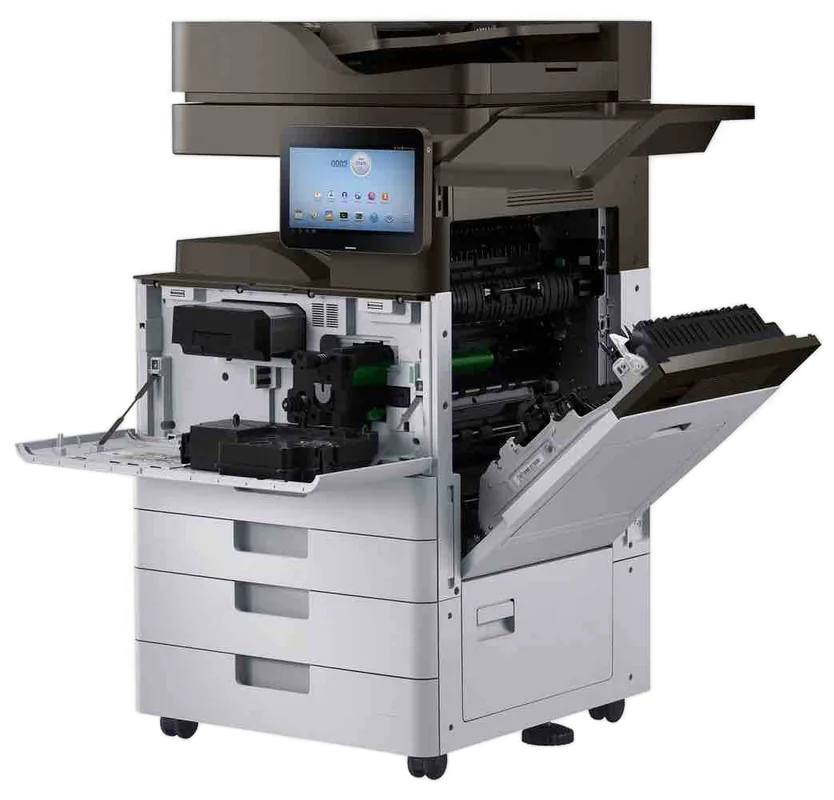
Then print a configuration or status page from the panel. The exact menu name varies by model. If that page comes out, the printer can print and it knows its own address, which you will want in a moment. On a copier, a quick copy tells you that the print engine works. It does not clear the network, the controller, the hard drive or the PC, so treat it as narrowing the search and not as the end of it.
Clear the queue and restart the spooler
Open Printers and scanners, choose the printer and open its print queue. Look for a job stuck at the top, a paused queue or a tick against Use Printer Offline in the Printer menu. Cancel the stuck job. If it refuses to cancel, open Services, find Print Spooler and restart it. On a shared printer, do this on the computer or server that hosts the queue, because that is where the queue really lives.
If the queue still says offline after that, our page on printer offline and network faults sets out what is checked at the printer, the port and the network.
Look at the driver the update may have swapped
Open the printer's properties and go to the Advanced tab. The driver name is shown there. Compare it with a PC that still prints. Windows can supply a driver of its own through Windows Update, and a generic driver may print a plain page while losing trays, finishing options or double sided printing. In some cases it may not print to that model at all.
If the names differ, install the maker's driver package for that exact model and remove the old queue before adding the printer again. Match the driver to the PC as well: a 64 bit Windows PC needs a 64 bit driver. Driver errors have their own causes, and our post on why office PCs lose their printer driver goes through them.
Check the port and the printer's address
On the Ports tab of the printer properties, find the ticked port. If it is a Standard TCP/IP port, it shows an address. Compare it with the address on the configuration page. If they differ, the PC is asking the old address.
A printer that takes its address automatically can end up with a new one after any restart or power cut. A night when the building restarts for updates is a good moment to notice that, even when the update did not cause it. Reserving a fixed address for the printer on the router or server is the lasting fix, and whoever manages your network should choose the address so that it does not clash with another device.
Shared printers and the newer rules about drivers
Many offices connect each PC to a printer shared from a server or another PC. Microsoft has tightened how Windows installs and updates printer drivers from a shared printer in recent years. On current builds, a standard user can be refused or prompted for administrator credentials when the PC tries to install or refresh the driver.
The signs are an error that Windows cannot connect to the printer, a request for administrator rights, or a printer that worked until the PC restarted and then stopped. Exact messages vary by build. The sensible fix belongs to whoever looks after your PCs: install the driver on each PC in advance, or deploy it by policy. Do not loosen security settings on the advice of a web page unless you understand what you are opening up.
Also check the host. If the server or the PC that shares the printer was updated too, confirm that the Print Spooler service is running there and that the sharing and permissions on the printer are as they were.
Rolling the update back: when and who decides
Windows keeps a list of installed updates under Update history, and an update can be uninstalled from there. Think before you do it. A security update closes something for a reason, and removing it opens that again. That choice belongs to whoever is responsible for your IT, and it is best tried on one PC first. Finding the real cause is usually a better use of the time than rolling back, since the same update will return at the next opportunity.
When the printer itself needs a technician
Stop working through Windows settings and call when any of these is true:
- The configuration page will not print, or the panel shows an error you cannot clear.
- Printouts show lines, smears, noise or repeated jams, which are machine faults and not update faults. See copier and printer faults for the common ones.
- The driver, port and queue all match a PC that works, and this PC still prints nothing.
- The copier copies but takes jobs from the network and prints none. Our page on a copier that is not printing covers that.
A technician can look at the machine through our commercial printer repairs service, and can check the settings at the printer end while your IT contact looks at the PC end. Repairs are done at your premises across metropolitan Sunshine Coast, from Maroochydore and Mooloolaba to Caloundra, Buderim and Nambour.
A short guide to the first check
| What you see | Check first |
|---|---|
| One PC only fails | That PC's queue, driver name and port |
| Only updated PCs fail | Driver swapped, or shared printer driver rules |
| Everyone fails | Printer panel, configuration page, server and network |
| Jobs sit in the queue | Pause and offline settings, then the spooler |
| Port address differs from the page | The printer's address, set to a fixed one |
If you have worked down that table and the printer is still silent, ring Laser on (07) 5327 3472. The line can be busy, and when it is the call is logged and returned. Same day service depends on the fault and the diary, and the price is agreed on the phone.
Call (07) 5327 3472 with the make, the model and what it is doing. We agree the price on the call, and same day depends on the fault and the diary. If the line is busy, the call is logged and returned.