What gets done on the day
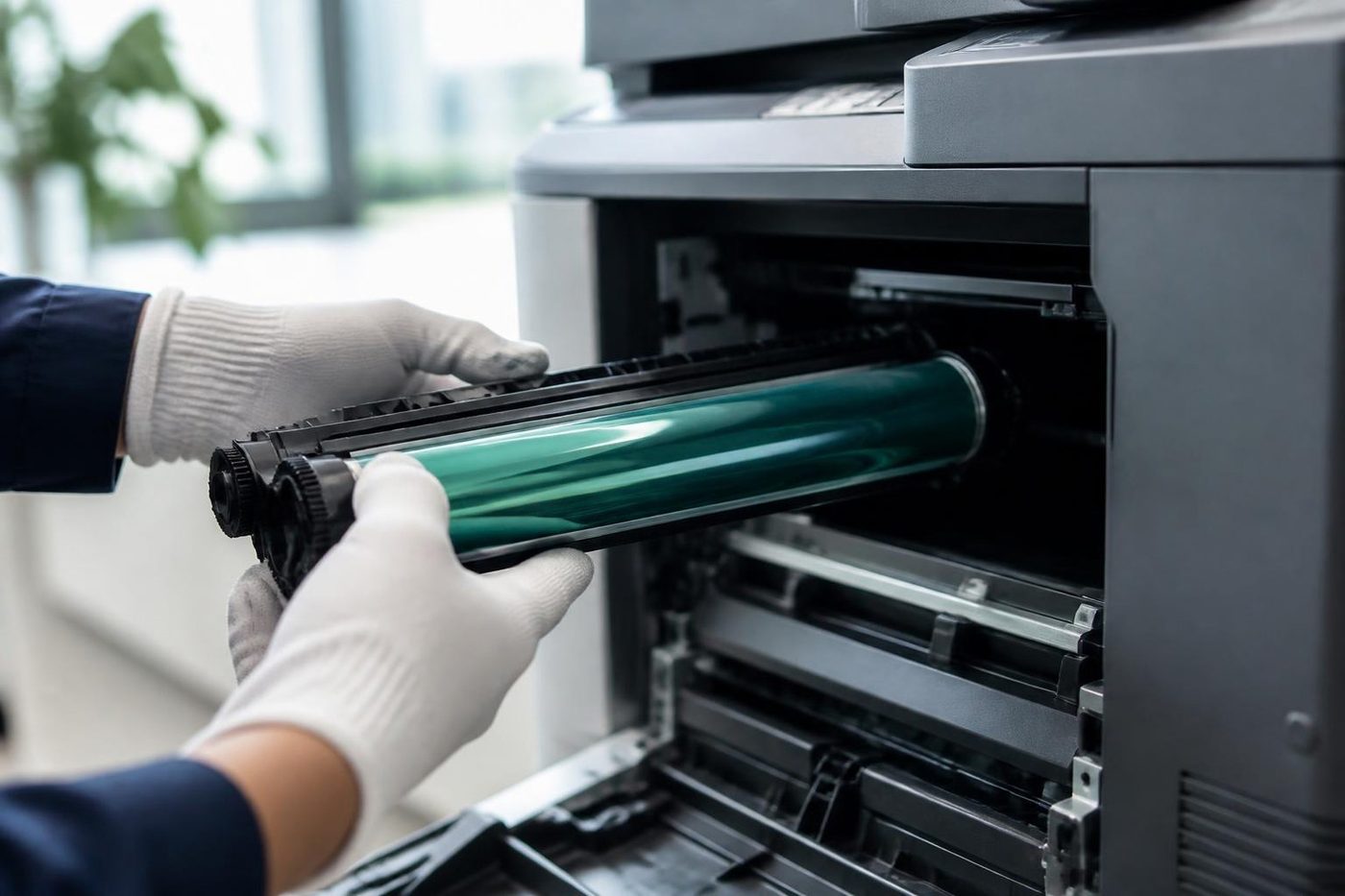
The machine comes off the delivery, gets checked over for transport damage, and is wheeled to where you want it. Transit locks and packing come out. Drum and toner go in, paper is loaded, and the machine is powered up and run through its own checks. Test copies come first, with nothing plugged into the network yet. If the copy is wrong, the network will not fix it.
Then the connection. Cable or wireless, with a fixed address so it does not wander off when the router restarts. Each type of computer in the office gets the right driver and prints a test page. Last, scanning, which is where most of the time goes.
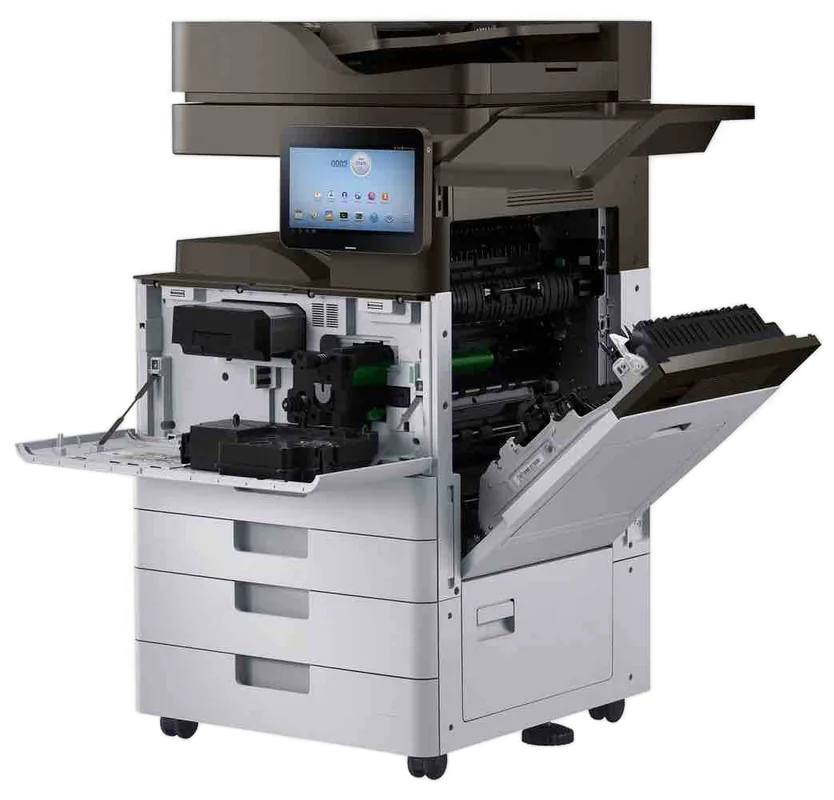
Scan to email, scan to folder, scan to cloud
Scanning causes more calls than any other copier feature, and the reason is that three separate things have to agree. The machine, the network and the mail system each have their own rules, and a change in any one breaks the chain. A mail provider tightens its sign in. Someone moves the shared drive. The firewall learns to dislike a device it has not met.
So we set it up with real details and then test it with a real scan, sent to a real inbox, saved to a real folder. We write down what we used: the server name, the account, the folder path, the port. A year on, when the password policy changes, whoever looks after your computers has a note to start from. If scanning has already stopped on a machine that used to work, our page on scan to email not working covers the usual causes.
Printer installation Sunshine Coast offices need beyond the test page
One test page proves the machine can print. Printer installation is finished when the people in the office can print from their own computers and phones, collect a job, change paper and clear a jam without ringing anyone.
In a mixed office that means Windows machines, a few Macs, maybe a director printing from an iPad. Each needs its own driver or its own method. AirPrint and wireless printing are available on most machines and we set them up if you want them. We print a test from each type of device before we leave.
Staff training is short on purpose. Nobody remembers a forty minute lecture. We show each person the three or four things they will use: send and collect a job, scan to their own email, load paper, clear a jam. A note on the machine covers the rest.
Secure print, user codes and who prints what
Walk past the output tray of a busy office and read the top sheet. Payroll, a client statement, a referral. Secure print holds a job at the machine until the sender is standing there and releases it with a PIN or a card. User codes track who prints what, and can set limits. Both are available where the machine supports them, and both are worth turning on in practices, accountants and anywhere that handles people's records.
We also set up the drive security that the machine offers. A copier keeps images of what it has scanned and printed on an internal drive, and that matters when the machine leaves the building one day. See our page on relocation and removal for what happens then.
Where the machine goes, and what it plugs into
Placement gets decided in about two minutes at the start of the day and lives with the office for years, so it is worth a little thought. A copier wants a wall socket of its own, not the end of a daisy chained board with a heater and a kettle on it. It wants clear space round it for the doors, the drawers and the person clearing a jam. And it wants to be somewhere that is not the sunniest spot in the room.
On the Coast that last point matters more than it sounds. A west facing window in a Maroochydore or Mooloolaba office gives a machine a long, hot afternoon, and paper kept beside it takes up the heat and the damp in turns. Salt air near the water is hard on contacts. During storm season a decent surge protected power point is a cheap thing to have between the machine and the wall. None of this is exotic. It is the sort of thing that is easy to fix on installation day and annoying to fix a year later.
If the machine is a floor standing one, we check the floor is level. The paper drawers and the developer run happier on a level base, and a copier that has been left to rock on casters will eventually tell you about it with a skewed feed.
The network side, in plain words
A copier on a network is just another device with an address, a name and some accounts it signs in with. Getting those right on day one avoids most of the strange calls that come later.
The address matters because printing breaks when it changes. If the router hands out addresses at random, the machine can come back from a power cut with a new one and every computer is suddenly printing into the void. We either set a fixed address on the machine or ask whoever looks after your network to reserve one for it, and we note which.
The name matters because people recognise names. Printers called something like Front Office Colour get used correctly. Printers called by a string of letters and numbers get used by trial and error. We name the machine so a new starter can find it.
The accounts matter because scanning depends on them. A scan to folder uses an account that has permission to write to a folder. A scan to email uses a mail account, or a relay arrangement, that is allowed to send. If those are somebody's personal login, the first password change breaks scanning for the whole office. We ask for a dedicated account for the machine wherever the setup allows.
Mail and folder settings that trip people up
Offices on Microsoft 365 or similar hosted mail often have the older kind of sign in switched off, because it is less secure. A copier is an older kind of device and may rely on it. Depending on how your mail is set up, the options are an exception for the machine, an app specific password where the provider allows it, or a relay arranged on the mail side. Your IT provider will know which of those suits you, and we work with them on the phone.
Scan to folder has its own traps. Older machines talk to shared folders using an old version of the file sharing protocol that newer Windows computers refuse by default. A folder that looks perfectly shared will still reject the machine. Newer firmware speaks the current versions and the fix is a setting. Either way the folder path has to be typed exactly, the account has to be allowed to write there, and the computer holding the folder has to be switched on. A scan to a laptop that goes home at five is a scan that fails at five past.
Where scan to cloud is offered, it depends on the model and on which services it supports, so we check against your actual setup before promising it.
Drivers, Macs and phones
Windows computers get a driver for the model, or a universal driver where that suits the machine better, and we choose by looking at what the office needs. A driver that exposes the finisher and the tray options is worth having. A bare bones one that hides them is not.
Macs print through the system's own method, with AirPrint where the machine supports it, and a manufacturer driver where it does not. Phones and tablets print through AirPrint or the standard mobile print service, so long as the machine and the phone are on the same network. Guest Wi Fi that is separated from the office network will not see the copier, which surprises people. We say so up front.
We print a test from at least one of each type of device. Windows, Mac, a phone if you use them. It takes a few extra minutes and catches the one computer that picked up an old driver.
Paper and trays: teaching the machine what it holds
Every tray has a setting for the size and type of paper in it, and the machine trusts that setting completely. Load heavy paper in a tray labelled plain and you get jams and poor toner adhesion. Load letterhead the wrong way up and you get printing on the back of it. We set each tray to what it actually holds, show staff which way up letterhead goes for single sided and double sided jobs, and label the drawers where that helps.
If the office prints on thicker stock for covers or on envelopes now and then, we set up the bypass tray for it so people are not changing a main tray in the middle of a rush.
Colour, mono and who is allowed what
A colour machine set up with colour as the default for everything will be used in colour for everything. The extra cost per page shows up months later in someone's invoice. Setting the default to black and white, and letting colour be a choice, is one of the most useful five minutes of an installation. User codes or card release can then go further, by limiting colour to the people who need it. Where the machine supports them we set them up, with the limits you ask for.
Address book, shortcuts and what staff see on the screen
The home screen is the part of the copier staff use every day, and a lot of machines arrive with it cluttered with features nobody in the office wants. Where the machine allows it we tidy it, putting copy, scan to me and scan to the main folder up front. An address book of the people staff email scans to saves typing on a small keyboard, and some machines can pull it from your directory. Shortcuts for the jobs the office repeats, such as a double sided stapled copy, are a quiet saver of time.
Four offices, four different installs
A medical suite that scans referrals into a shared folder on a server wants a locked down folder, a named account and secure print, because the output tray sits within reach of the waiting room. A builder's office wants scan to email set up quickly, A3 trays for drawings and a machine that tolerates a dusty site shed. A school administration office wants user codes by department and a machine that is not defeated by the first photocopy order of term. A small accounting practice wants card or PIN release, drive security and everything quiet in the last week of the quarter.
Same sort of machine in all four. Different settings, different questions on the phone, a different handover. That is why we ask what the office does before we ask what the machine is.
What we leave with you
When we go, there is a short note of what was set: the machine's address and name, the accounts used for scanning, the folder paths and the mail settings, which trays hold what. There is a word with whoever will be the person staff turn to. And there is a number to ring if the first week throws something up, which it often does, even if it is only a computer that was on holiday during the install and now needs its driver. Our work is warranted, with what is covered explained on the phone.
Photocopier setup Sunshine Coast: the questions we ask first
Set up goes faster when a handful of facts are ready before the day. You do not need all of them. Where you are missing something, we help find it or we talk to whoever looks after your network.
- Make, model and where it will sit
- How many computers will print, and whether they are Windows, Mac or both
- Which scan destinations you want: email, folder, cloud
- Your mail provider and the shared drive location
- Whether you want secure print, user codes or card release
- Who looks after your network, and whether we can ring them
- Access to the building, any lift or stairs, and the date
A machine you bought somewhere else
You do not have to buy from us. A copier that came from a marketplace listing, from a previous tenant, from a lease with someone else, or from a relative who closed a business can still be installed and set up properly. Tell us the make and model on the phone. We check the settings, look at the condition, and say honestly if there is something about the machine you should know before you rely on it.
A new office or a fit out
A fit out has a long list and the copier is one line on it. The cabling person is in, the phone people are coming Thursday, the carpet is still being laid. We work around the trades, plan the delivery for a day when the space is ready, and ask about the lift, the stairs and the door widths. If your old machine is moving across to the new office, see photocopier relocation and removal.
When an install goes wrong
Hardly ever the machine. A network changed the week before. A mail provider that blocks the machine's sign in. A computer with a tired old driver. A shared folder that has moved. A firewall that treats a new device as suspicious. We work through each one in order. Where the problem is outside the machine we say so, and give whoever looks after your network the exact thing to look at.
Drums and daylight
A drum is coated with something that reacts to light. Leave one on a bench by a window at a Buderim office while someone hunts for a screwdriver and it can come back marked for good, the same small spot down every page. People notice a week later and blame the toner. Ours stay wrapped until the second they go in, and nobody puts a finger on the surface.
The same care applies to the transfer belt in a colour copier. A thumbprint on it can print as a faint repeat on every colour page for the life of the belt.
Looking after it afterwards
Our technicians are trained, experienced and certified, they carry the common spare parts, and repairs happen at your premises. If the same fault returns, we fix it again at no charge. Our work is warranted, and the machines we sell are warranted too, with what is covered explained on the phone. If you have not yet picked the machine, start with how to choose a photocopier, new and A3 photocopiers or photocopier sales.
We install from Caloundra to Noosa, inland to Maleny and the Blackall Range, and north to Gympie, Tin Can Bay and Rainbow Beach. Phone with the suburb and we plan the day.
Drums and daylight
A drum does not forgive a sunny bench
The drum is coated with something that reacts to light. Leave one on a bench by a window at a Buderim office while someone hunts for a screwdriver and it can come back marked for good, the same small spot down every page. People notice a week later and blame the toner. Ours stay wrapped until the second they go in, and nobody puts a finger on the surface.
We have no brand to push, so nobody here gains by selling you a drum you did not need. If the drum is fine we say so and look somewhere else.
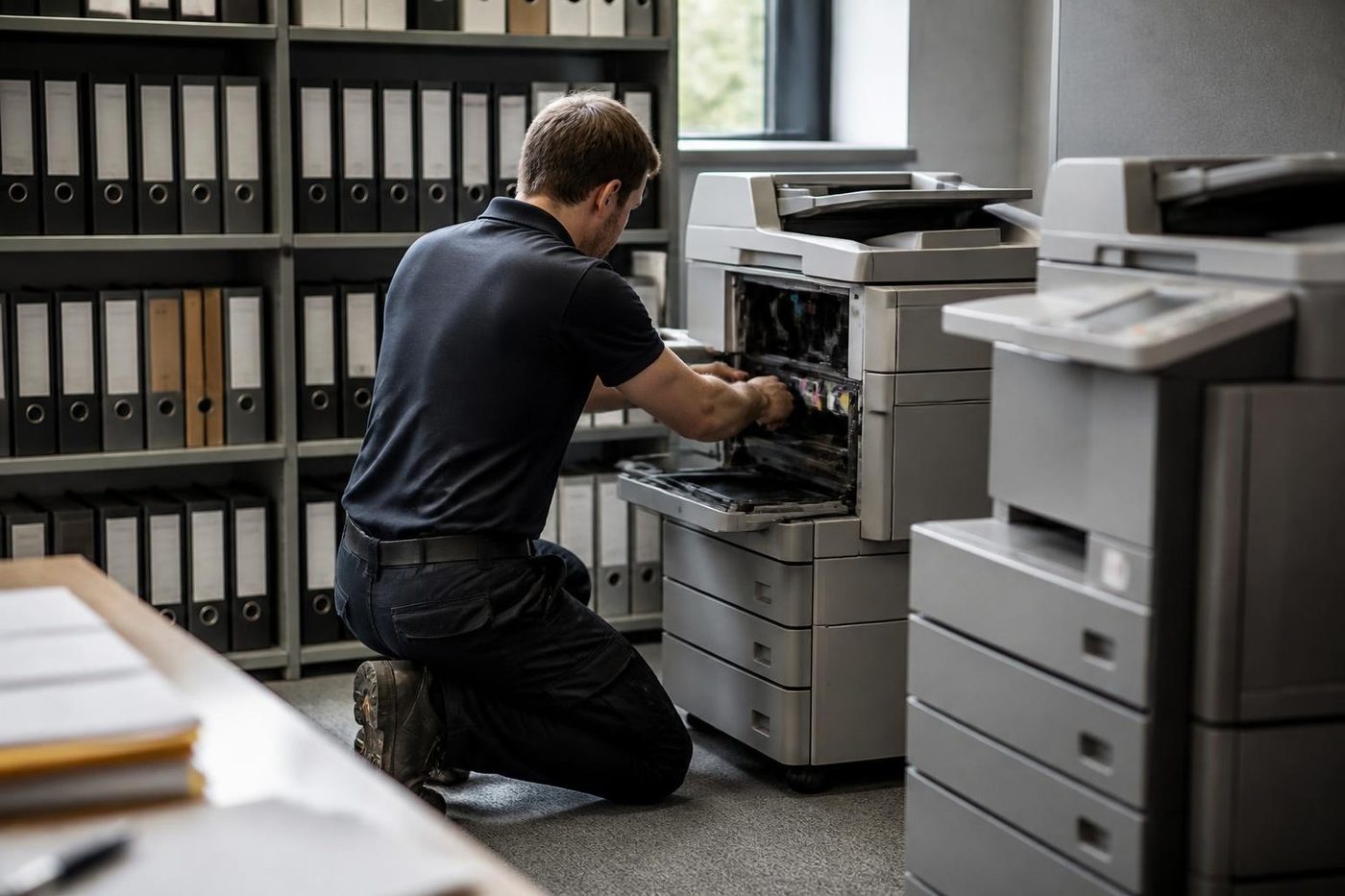
- Wrapped until fitted. Drums stay out of the light.
- No fingers. The surface is never touched.
- Cause first. Streaks and spots get traced before a part is ordered.
More for Sunshine Coast offices
Photocopier salesHow a sale goes with us, from the first call to a working machine. New and A3 photocopiersNew A3 copiers, delivered, set up and serviced by us.
 Relocation and removalCopiers moved, reconnected and tested, or taken out and wiped.Scan to email not workingThe scan leaves the glass and never reaches the inbox.
 How to choose a photocopierWhat to ask before you spend a cent on a copier.
 Photocopier hire, rental and leaseFour ways to pay for a commercial copier, set out in plain words, with what to ask before you sign.Printer offline and network faultsPrinter showing offline, or reachable from some computers only.
 Second hand photocopiersTested second hand commercial copiers, delivered, connected and warranted.
Buy, sell and lease
Buy, sell and lease commercial copiers on the Sunshine Coast
We also sell new and second hand commercial copiers and buy used ones. Same team, same technicians.
Out on the road, in the building, back on the road
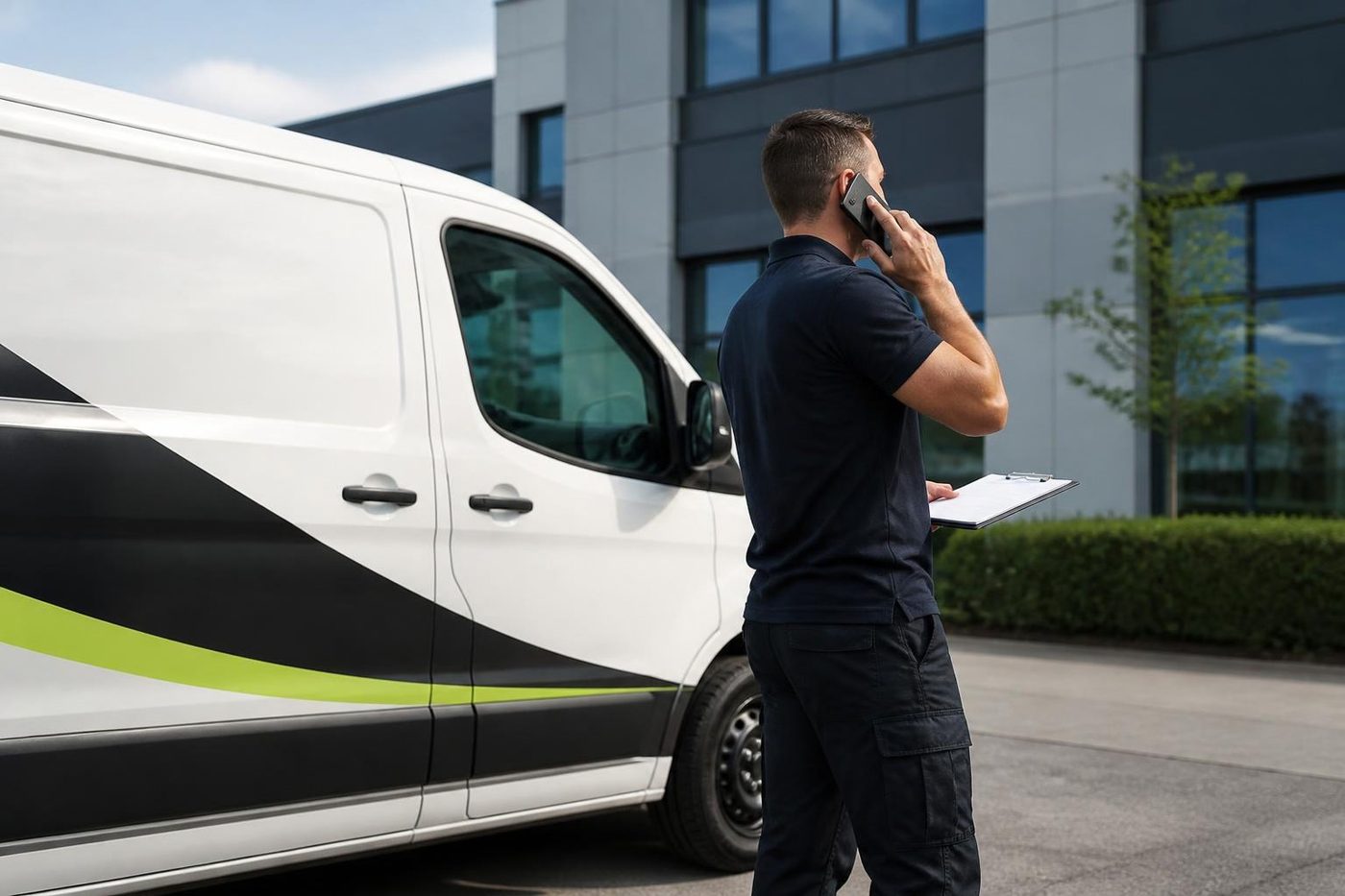
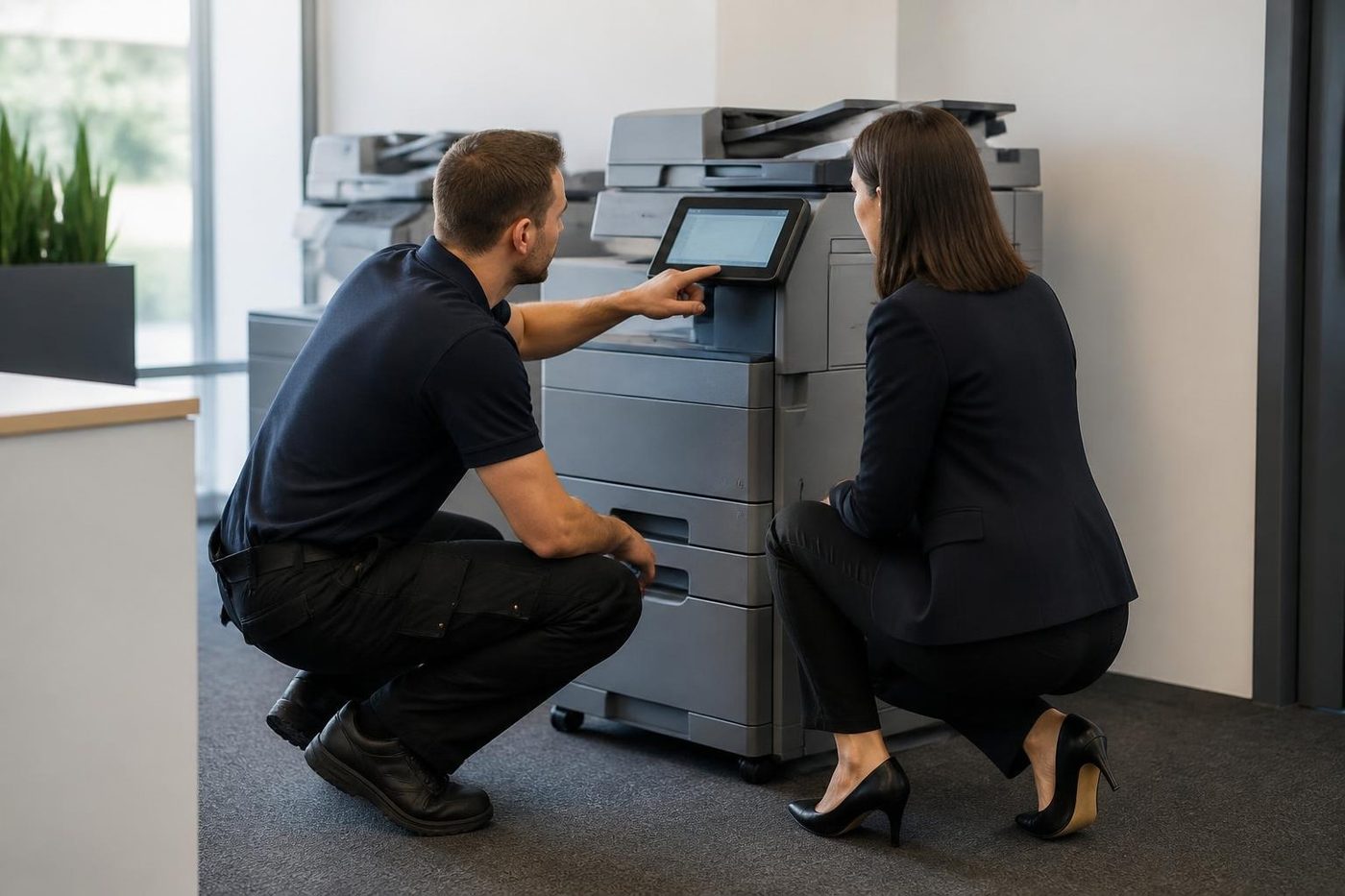
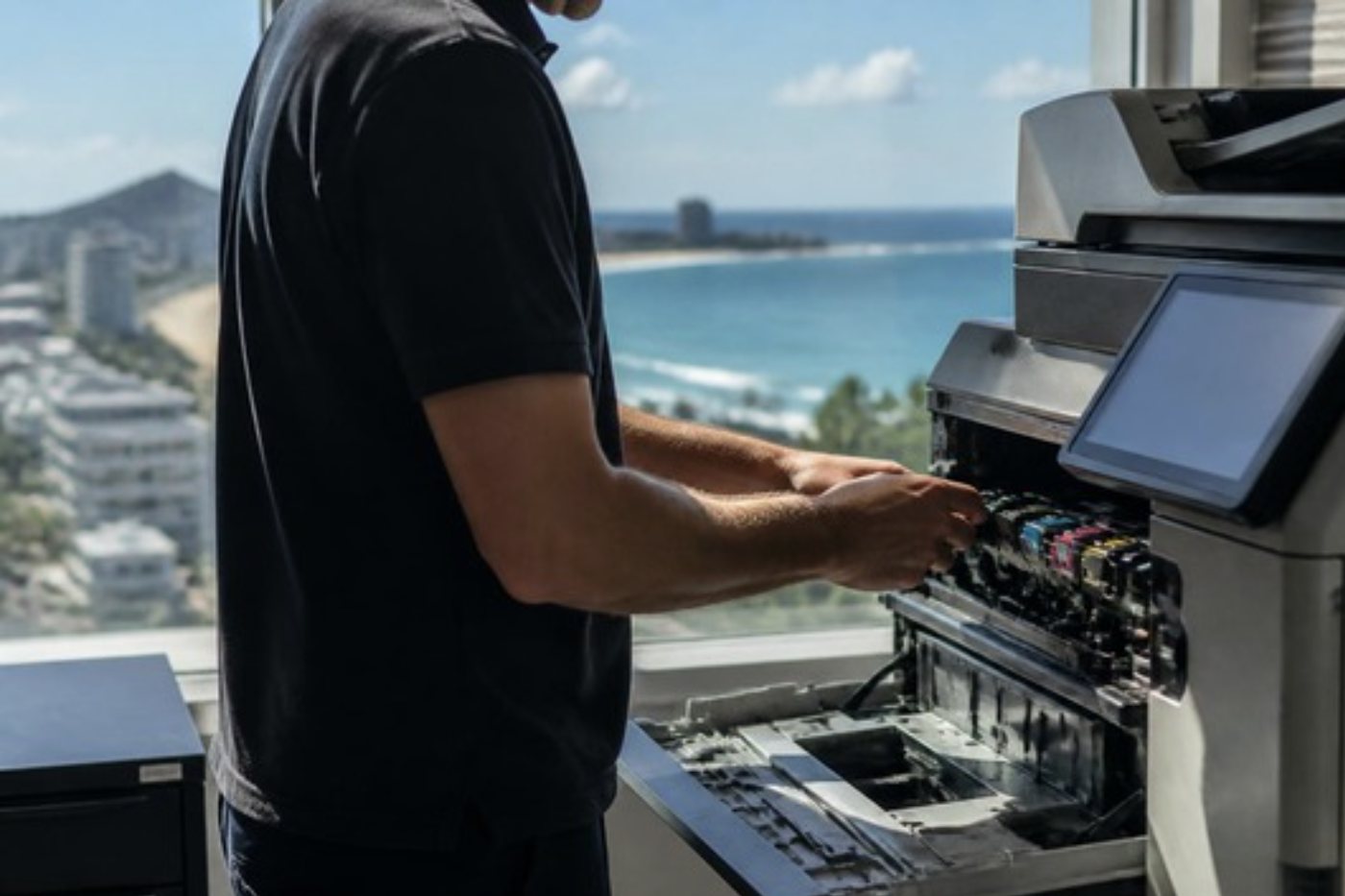
What people ask when they ring
Do you install photocopiers on the Sunshine Coast?
Yes. We deliver, install, connect and set up commercial copiers and printers across the region, including machines that were bought elsewhere.
Can you install a copier I bought from someone else?
Yes. Tell us the make and model, and we set it up and check the settings and the condition.
Do you set up scan to email and scan to folder?
Yes, and scan to cloud where the machine supports it. Each one is tested with a real scan before we leave.
Will you set up every computer to print?
Yes. The right driver goes on each type of computer, and a test print is made from each.
Can you set up secure print or card release?
Yes, where the machine supports it. User codes and limits too, if you want to track who prints what.
Do you train staff?
A short walk through of the settings people actually use, and a note left by the machine.
Can you install in a new office before it opens?
Yes. Give us the date and the access details and we plan the delivery around the trades.
Is the installation work warranted?
Our work is warranted, and we explain what is covered on the phone.
How long does an installation take?
Part of a day for most machines. A larger machine or a larger office takes longer, and we say so when we plan it with you.
Do you leave a record of the settings?
Yes. We write down what was set so whoever looks after your computers has a note.
What do you need from me before the day?
The make and model, the network and mail details or the contact for whoever looks after them, the access arrangements and the date.
Do you set up a photocopier for a mixed Windows and Mac office?
Yes. Each type is set up and tested, and AirPrint and wireless printing are set up where you want them.
Can you put a copier in a shared office building?
Yes. Tell us about the loading area, the lift and any sign in rules, and we plan the delivery around them.
Why does scan to folder fail on a machine that used to work?
Often a changed password, a moved folder, a computer that is switched off or a security setting that now refuses the older file sharing method. We check each.
Do you set the machine to print black and white by default?
Yes, if you want it. Colour then becomes a choice, and user codes can limit it further.
Can phones print to the copier?
Usually, through AirPrint or the standard mobile print service, provided the phone is on the same network as the machine.