Two edges decide most upside down back pages: the long edge and the short edge. Get that one choice right and a contract, a price list or a patient letter comes out the way up that you meant. Get it wrong and every second page is upside down, and the reader turns the sheet round and wonders why nobody fixed it.
Long edge or short edge: the setting behind flipped pages
When a machine prints on both sides, it has to decide how the sheet will be turned over by the reader. The setting is usually called Flip on long edge or Flip on short edge. It is worded in terms of the paper, not the page as you read it, and the wording varies by driver and by maker.
| Setting | How the sheet turns | Usually suits |
|---|---|---|
| Long edge | Like the pages of a book, bound down the left side | Portrait documents such as letters and reports |
| Short edge | Like a notepad or calendar, bound along the top | Documents meant to flip upwards, and some sideways pages |
Sideways pages, wider than they are tall, add a twist. The long edge of the paper is then at the top of the page you read, so the choice that is right for portrait can come out upside down. If your page is sideways and the back is inverted, try the other edge before you suspect a fault. Print one test sheet and mark the top of the first page with a pen, so you can see what happened to the second.
Where the setting lives: the program, the driver and the panel
Duplex choices can sit in three places, and a clash between them is a common reason why different people get different results from the same machine.
- The print window in the program. This applies to one job and normally overrides the others.
- Printing Preferences on the PC. This is the default for that queue on that PC. If one PC prints the back pages correctly and another does not, compare these.
- The machine's own panel. The default there may apply to copies and to jobs that do not specify a choice. The exact menu name varies by model.
When someone says it worked yesterday, ask what changed in those three places. A new PC, a rebuilt queue after an update, or a driver replaced by Windows Update all reset Printing Preferences to the driver's own defaults. Our post on printing that stopped after a Windows update explains how that swap can happen.
When the double sided option is missing or greyed out
If the driver offers no two sided choice at all, or shows it greyed out, look in the driver's Device Settings or Accessories tab, in the printer properties. Many drivers have a box for installed options, including a duplex unit, and the box can be unticked after a driver reinstall even though the unit is fitted. Tick it, apply, and check the print window again.
If the driver shows a choice but the paper only prints on one side, check the paper type and source. Some machines will not print two sided from a bypass tray, from envelopes or labels, from certain thick stocks, or from a tray set to a paper size or type the unit does not support. The manual for your model lists what the duplex unit accepts. If the model does not have a duplex unit, no setting will create one.
Letterhead, and the way up it is loaded
Preprinted letterhead is a common place for double sided printing to go wrong in an office. The way a sheet should be loaded is not the same for one sided and two sided jobs, and it differs between trays and between makes, because the machine either prints on the face up or the face down side. Most trays have a small diagram near the guides that shows the right way. If the diagram is missing, print one single sided page and one two sided page on plain paper, mark the top, and load the letterhead to match.
Jams that only happen on the second side
A jam only on the back page is a useful clue. It means the first side printed and was fused, and the sheet then failed on the trip back through the duplex path to be printed a second time. The causes that are worth checking are:
- Curl. The first pass through the fuser heats the sheet and can leave it curled. Paper that has taken up damp, or that is a light weight, may curl more. Our post on what damp, salt and storms do to copiers covers why this matters on the coast.
- The wrong paper type. If the tray or the driver says plain paper while the stock is heavier or coated, the fuser and the paper path may be set up wrongly for it.
- Mixed stocks. Reams of different weights stacked together feed unevenly.
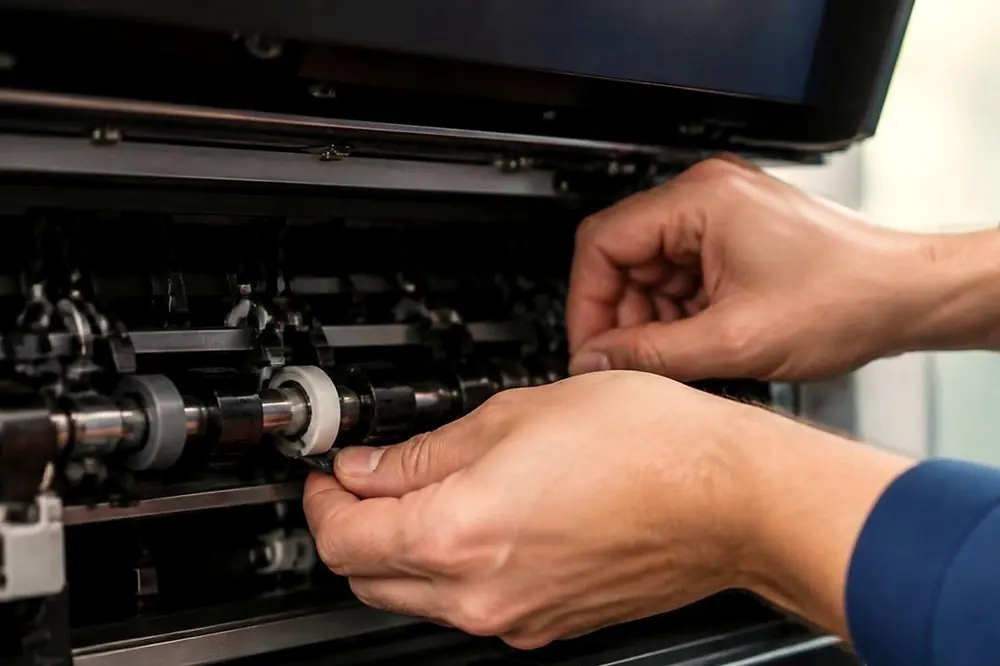
- Loose or worn parts. A sheet that arrives crooked at the duplex entry, or a feed roller that has worn smooth, can lose its grip.
- Scraps in the path. A small torn corner left behind after an earlier jam can catch the next sheet.
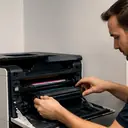
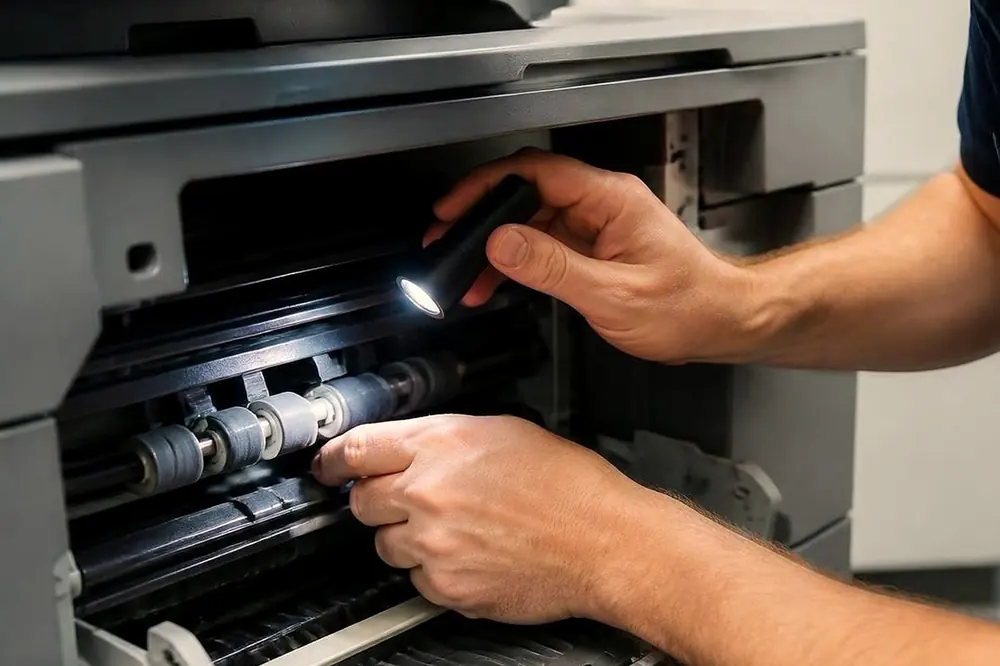
When you clear a jam, leave the machine switched on unless the manual says otherwise, because the panel often shows which cover to open. Open only the covers the panel points to, and remove the sheet in the direction shown by the arrows or labels inside. Never reach into or past parts marked hot. If the jam is at or near the fuser, shut the machine down properly and let it cool for the time the manual states before you touch anything there. Whatever you do, check that no scrap is left behind, because that is a reliable way to cause the next jam.
A quick test to run before anyone rings
- Load fresh plain paper from a sealed ream, in a tray that is set to plain paper.
- Print a two page document set to double sided, long edge, from a simple program. Mark the top of page one.
- Look at page two. Is it the right way up? If it is upside down, repeat with short edge.
- Print the same job from a second PC. If the result differs, compare Printing Preferences on both.
- Print a ten page two sided job. If a jam appears only on the backs, note which tray it came from and what paper was in it.
That test separates a setting problem from a paper problem from a machine problem, and it gives you something concrete to describe on a call. Copier jams that repeat have their own page, photocopier paper jams, and a longer list of symptoms sits under copier and printer faults.
When to stop and call
Settings and paper are yours to fix. A worn roller, a damaged duplex path, a fuser that marks the sheet, or squealing and grinding noises while a sheet is being turned are not. If a jam repeats with fresh paper in the right tray and the settings confirmed, or if you see black marks, creases or scorch marks on the back page, the machine needs a technician. The page on copier noise is worth reading if a sound goes with the jam.
Smoke, flame or a burning smell is different. Leave the machine, follow your building's fire procedure, call 000 and unplug it only if that is safe.
Laser repairs business printers and copiers at the customer's premises across metropolitan Sunshine Coast, whether the office is in Maroochydore, Kawana, Caloundra or Noosa. The number is (07) 5327 3472. The line can be busy, and when it is the call is logged and returned. The price is agreed on the phone, and a fault that returns is fixed again at no charge.
Call (07) 5327 3472 with the make, the model and what it is doing. We agree the price on the call, and same day depends on the fault and the diary. If the line is busy, the call is logged and returned.