Did it fail on the machine or after it?
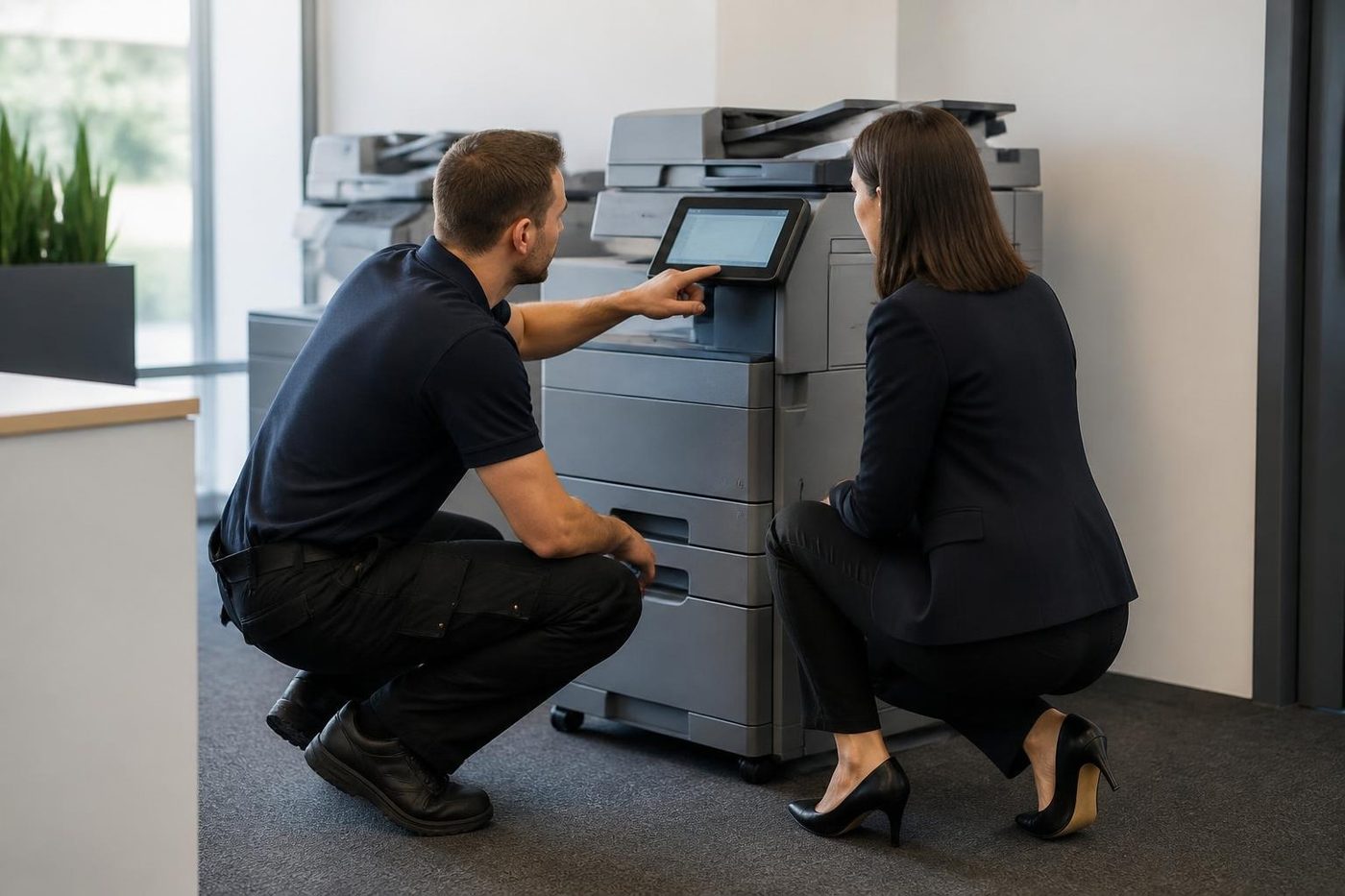
The panel is the first witness. If it shows an error as soon as you press send, the machine could not talk to the mail server. If it says it has sent and nothing arrives, the mail left the machine and got lost, rejected or filed as junk further along.
Two different problems, with two different owners. The first is a setting on the copier. The second is on your mail system.
Check the junk folder, and the quarantine if your office has one. Scanned PDFs from a device with a generic sender address are exactly the sort of message spam filters get nervous about.
The password changed, or the provider got stricter
A copier logs in to a mail account the way a person would. When the password on that account is changed, the copier is still presenting the old one. It happens after a staff change, after a forced password reset, and after a business moves email provider.
Larger mail providers have also tightened how devices are allowed to send mail. A copier set up years ago with a plain username and password may be refused where it was once accepted. The fix is on the mail side, a connector, an app password or a relay setting, and then the new details go into the copier.
Both are quick when your IT contact is on the phone with us. Without them we can see what the copier is trying, tell them what it sends, and let them match the setting.
Six causes, roughly in the order they turn up
Each one has a symptom that gives it away.
- Old credentials. Fails the moment you press send, and fails for every user.
- Wrong server name or port after an email move. Same symptom, but it started on a date you can remember.
- File too big. The panel accepts it, the message bounces. Colour scans at high resolution of a few pages can be larger than the mail limit.
- Sender address blocked or untrusted. Mail is sent and never seen.
- Address book entries out of date. Only some people are affected.
- Time and date wrong on the machine. Some mail systems will not talk to a device whose clock is far out.
Size is the one people do not suspect. A single page scanned in colour at a high setting can be bigger than a short document at a low one. Black and white at a modest resolution, saved as a compact PDF, is almost always enough for the office.
Scan to folder is a different animal
Scan to a shared folder on a server or a PC uses a different path. The machine needs a name or address for that computer, a folder, and a user the folder will accept. The usual breaks are a changed password, a renamed computer, a share that was moved, or a security change on the server that stopped older ways of connecting.
If scan to email works and scan to folder does not, the mail side is fine. If neither works, look at the machine's own network settings, or the router.
Scan to a USB stick is the stopgap. It has no network in it, and it gets the document out of the room while the settings are fixed.
Why it matters if you are on Microsoft 365 or Google
Most Coast offices now run mail through one of the two big providers. They allow devices to send mail in a few specific ways, and each has its own rules about sign in, relays and allowed senders. A copier that sends from a general mailbox is the type of device those rules were written about.
The sensible setting is one sender address that exists on purpose for the copier, with its own restricted permissions, rather than a staff member's own login. When that person leaves, scanning stops. We suggest this on every new install and every service call where the fault turns out to be a personal login.
Quick checks you can make
Press the scan button and read the message. Write it down.
Send to your own address first, then someone else's. If your own works and an outside address does not, the mail server is restricting where the machine may send.
Look at the date and time on the panel.
Try one page, in black and white, at a low resolution. If it goes, size was the problem.
Check a second user. If only one user is affected, it is probably their saved address book or login.
Where we draw the line
We repair the copier and configure its side of scanning. We do not manage your mail system. When the cause is a mail setting, we give your IT contact the exact details the machine uses, and what to set up, and we put in the new values when they have them.
If your office does not have anyone for that, tell us. We are happy to explain it to whoever looks after the email account, even if that is a director with a day job.
Coast small business reality
In a small practice at Buderim, a trade supplier at Yandina or a builder in Coolum, email is often managed by whoever set it up years ago and a reseller who has since moved on. The copier was configured on the same day and nobody wrote down the details.
That is normal. Ring with the model and the message, and we work out from the machine itself what it has been told to do.
Setting up scanning so it keeps working
A short checklist for whoever is looking after it. Give the copier its own sender address. Keep the address book short, with the five or six people who really get scans. Set a modest default resolution and a compact PDF. Write the settings on a card and tape it inside the toner door, because the day it breaks again is the day nobody remembers who set it up.
For a practice that scans patient or client documents, scan to a shared folder with the right permissions is usually better than email, since the file never leaves the building. That is a decision for you and your IT contact. We configure the machine to match.
Scanning from the feeder
Scan quality problems are not email problems, but they turn up in the same call. Pages that arrive crooked, double feeds, missing pages in a long document and faint scans of thin paper are the feeder, not the mail. Staple removal, loading with the guides snug and not overfilling the tray fixes a good share. A worn feeder pad does the rest.
When the scanner itself is at fault
If the copier gives a service code, a scan lamp error, a streak on every scanned page, or a feeder that skews pages, the cause is on the machine. See copier black lines and streaks for the marks, and copier error codes for the codes.
Technicians are trained, experienced and certified, and 98% of repairs are fixed on the first visit. The price is agreed on the phone before anyone is booked.
Heat
The fuser is the part that bites back
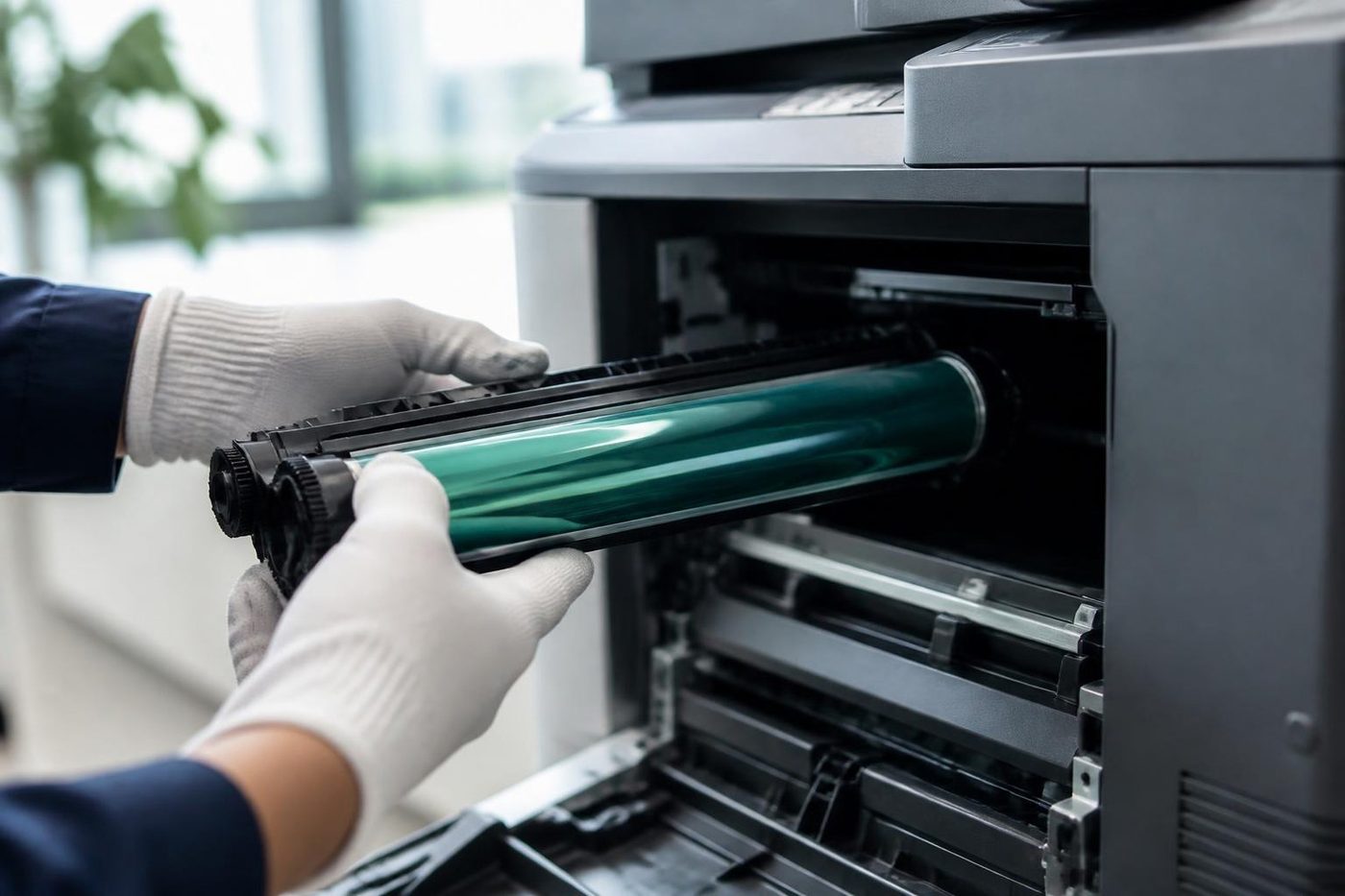
The fuser bakes toner onto the page, and it is hot enough to burn a finger in a blink. It also stays hot long after the machine has gone quiet. A rushed job either wastes time waiting or costs somebody a blister. We let it cool, look over the rollers and the sensors while we wait, and refit it square. Fitted crooked, a fuser wrinkles paper and wears out early.
A copier that eats paper is not always a fuser problem. We check the paper path first and only open the hot end when the evidence points there.
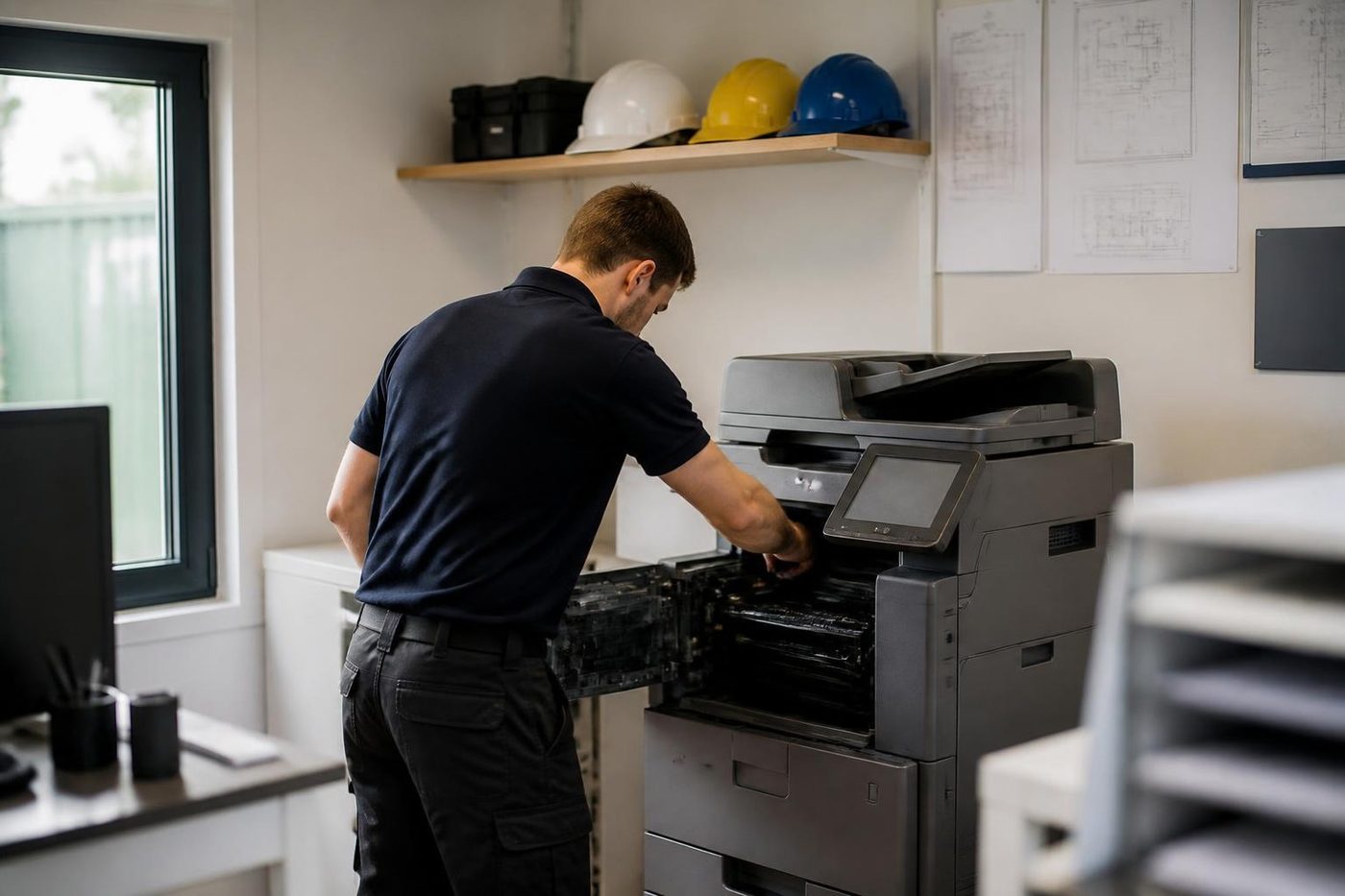
- Let it cool. Nobody gets burned and nothing gets bent.
- Check the sensors. A false reading can look like a dead fuser.
- Fit it square. Even pressure, even toner bond.
- Fixed once. If the fault returns, we fix it again at no charge.
More for Sunshine Coast offices
 Copier and printer faultsStart from the symptom, find the next step.
 Copier not printingJob sent, nothing comes out. Check these before you ring.Printer offline and network faultsPrinter showing offline, or reachable from some computers only.
 Commercial printer repairsCommercial laser printers, label printers and fleets repaired on site.
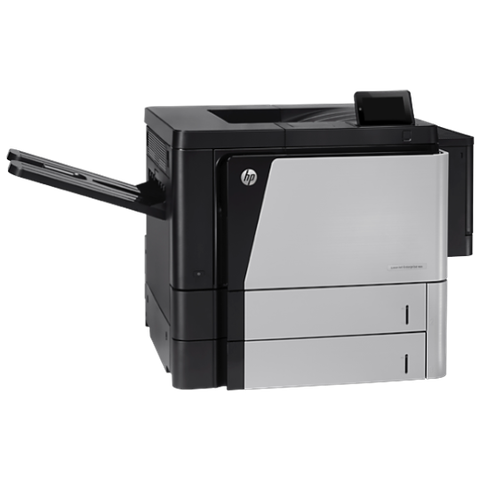 HP repairsLaserJet Pro, Enterprise, Color LaserJet and DesignJet repaired on site.
Buy, sell and lease
Buy, sell and lease commercial copiers on the Sunshine Coast
We also sell new and second hand commercial copiers and buy used ones. Same team, same technicians.
Offices, surgeries and site sheds
What people ask when they ring
Why did scan to email suddenly stop working?
A password or server setting on the mail account changed, or your provider tightened how devices may send. The copier is still using the old settings.
The copier says sent but nobody got it. Why?
Check the junk and quarantine folders first. Mail from a generic sender address is often held by filters.
Can scan to email be fixed without IT?
Sometimes. If you know the mail account details, we can put them in. If the provider needs a connector or app password, someone with access to the account has to create it.
Why does a large scan bounce?
The attachment is bigger than the mail limit. Use black and white, a modest resolution and a compact PDF.
Does scan to folder use the same settings?
No. It uses the network address of the computer or server, a folder and a login. It can fail when email works.
Do you set up scan to email on new machines?
Yes. We set up scanning on machines we install and repair, and we write the settings down for your office.
What if the date on the copier is wrong?
Correct it. Some mail systems refuse a device whose clock is far out, so a wrong date can quietly stop sending.